I found following website to be very useful. It provides comprehensive breakdown of the CSS support for widely used email clients in both mobile and desktops.
wfdsdfgh6 campaignmonitor.com
Regards,
Samitha
I found following website to be very useful. It provides comprehensive breakdown of the CSS support for widely used email clients in both mobile and desktops.
wfdsdfgh6 campaignmonitor.com
Regards,
Samitha
We can use Jquery or javascript to get all DOM elements
Jquery
var elements= $('*');
Javascript
var elements= document.getElementsByTagName('*');Cheers
Samitha
As per Expression property of the DataColumn , a filter on DateTime column is created enclosing the date between the number symbol (#)
DateTimeColumn = #dateTimeValue#
In addition the date should be formatted according to the format MM-dd-yyyy as displayed below.
Dim strQuery = String.Format("DateExpired= #{0}#", dtExpired.ToString("MM-dd-yyyy"))
The query above could still fail if the columns also contain times. In such case you should change your formatting to include also output for time "HH:mm:ss" or instead BETWEEN which is more clear.
Another workaround is use SQL CASE to check date and return a flag based ton the value as follows
SELECT
CASE when DateExpired IS NOT NULL AND DateExpired <= Convert(date, getdate()) then 'Y' else 'N' end IsExpired
cheers
Samitha
If we want to behave the checkbox as radio buttons we can use JS as shown below.
JS
function CheckOnce(checkbox) {
$("[id$='_chkLocations']").each(function (i, obj) {
if (obj !== checkbox) obj.checked = false
if (obj.checked) {
//do something
}
});
}
HTML
<input type="checkbox" ID="chkLocation" onclick="CheckOnce(this)">
<input type="checkbox" ID="chkLocation" onclick="CheckOnce(this)">
Cheers
Samitha
There are two ways to add the visibility attribute for an element. They have a difference in the way it renedered in the HTML as shown below.
1. $("#elementid").attr("style", "visibility: hidden")
This will be rendered as
style="visibility: hidden;"
2. $("#elementid").css("visibility", "hidden")
This will be rendered as
style="width: 50px; color: red; visibility: hidden;"
In summary the first one will set the style attribute and the second one will append to the existing style attribute.
Cheers
Samihta
If your project is using SSDT database project some times you may encounter the error “This statement is not recognized in this context”.
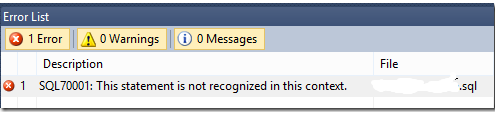
To fix this, right click and view the Properties dialog for the SQL script. Change the Build Action property to None.

Cheers
Samitha
Sometime icons inside an input element will give more User Experience to the viewer. Following code snippet shows how to put font awesome icons in an input field.
CSS
<style>
.input-icons i {
position: absolute;
}
.input-icons {
width: 100%;
margin-bottom: 5px;
}
.icon {
padding: 5x;
min-width: 20px;
}
.input-field {
width: 100%;
padding:5px;
text-align: center;
}
</style>
HTML